So on a few occasions a couple months back, some people on the MD forums I frequent were asking questions regarding GPS marking of their finds, as well as if there were any programs available for cataloging said finds. I remember thinking to myself, "Yeah, that'd be pretty sweet!" Well as is turns out, there is a single product that does both of those things, and a whole lot more!
The software, now in it's version 3.0 release, is called
i-detect, and is available from Ginkgoware, a division of CMH Software, Inc. They are located in the small (both in population size and area) North-Western Montana town of Libby. They have put out a product that is indeed robust, customizable, and quality made... and I feel every metal detector hobbyist should not be without it.
When I use the term robust in describing this program, I'm talking depth. This software just seems to have every option imaginable. Not only does it do everything, but it does it extremely well, and with much ease on the user end. So for all you tedious record keepers who pay a lot of attention to detail, just check out this list (not all inclusive) of the type of information it tracks:
- Locations
- Details
- Detector settings
- Detector brand and model
- Coil size
- GPS coordinates
- Finds
- Multiple pictures of items and locations
- Common coinage counter per location and total overall
- Total collection value per location and total overall
- Total time detecting per location
- Hardware maintenance information
- Reference # for you relic hunters
- Weight of item
- Map information
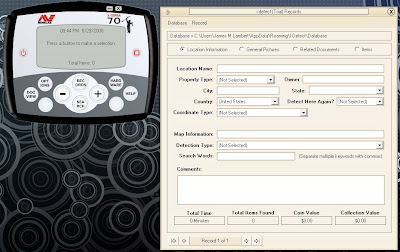
That being said, join me while I take you through my first entry. As you run the program, it comes up with a default detector "skin" and entry. To clear the example from the database, simply click Database > New Database > OK. Then just answer "Yes" to overwrite. After that, I had heard that you could customize your detector skin. So on the detector face, I clicked the Options button, then clicked Change Style, and then chose what I wanted, the Minelab X-Terra 70 (the closest to my actual detector). Click close and let's get back to the program. Other than the possibility you chose a different style, you should currently be looking at a blank Record entry like this:
I chose to use my most recent outting, of which was a tot lot at THE SHED next to Atlantic Shores Baptist. As you can see in the next image, I entered in all of "Location Information" accordingly. When you get to "Coordinate Type", you'll want to use the WGS 84 datum (if you are in he US). But here is the tricky part, especially for many of you out there who use Google Maps or Google Earth to find your hunting grounds. The program asks for the Lat/Long to be in the following format: Degress, Minutes, Decimal Minutes. However, if you are using any of the Google programs for GPS data, you may get a value like 36.78345003, -76.1925223, or adversely, one like this, 36°47'0.42"N, 76°11'33.08"W. Both of those mean the same thing, but neither is what the program asks for. If you have no clue about GPS coordinates and need an explanation to help you get the right numbers, check out
THIS WEBSITE or simply message me and I'll hook you up.
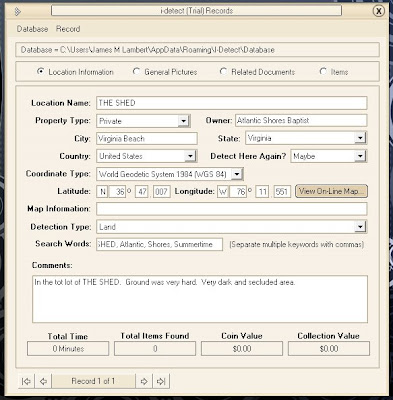
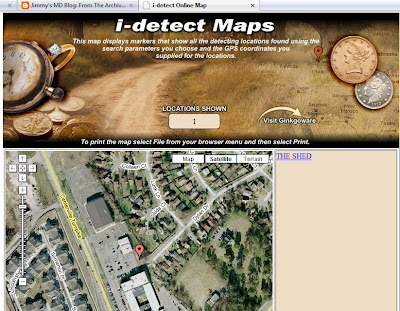
So my one complaint about the program would be that there is no way to enter in the GPS data in other formats. Small price to pay for such a great piece of software ;) But after you get the right data in there, clicking the "View Online Map" button brings up your location in a web browser, which I think is super cool.
Next we'll move on to the "General Pictures" tab. You'll immediately see tons of blank thumbnails. Click the little button under then that says "Load Image." Enter in your desired caption and then again click "Load Image." Simply browse for your image and select it. When it loads, just close the window and you'll see your thumbnail.
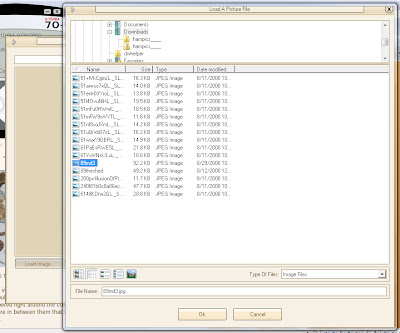
After adding however many pictures you want, head over to the "Related Documents" area. At this time I did not add any, but it's a great repository to add web links to information regarding the history of the location you hunted, or maybe granted permission documents.
Now on to the "Items" button. Simply click "Add New Item." Then you just add the details for said item. I chose to start out with the 19 modern pennies I found. As you can see, I entered the date of the find, the type of the item, it's era, it's condition, and value among other things. Does the item you want to enter not fit into one of the six default categories? Never fear, go back to the "Options" button on your detector face and you can add/remove/edit nearly every single pull-down menu list in the software.
You can also enter in info about your detector. Which did you use, what were it's settings? Did you hunt with a buddy? Note it as well. If you took pictures of individual items, you can load those here too. When finished with that item, click "OK" and continue to add others.
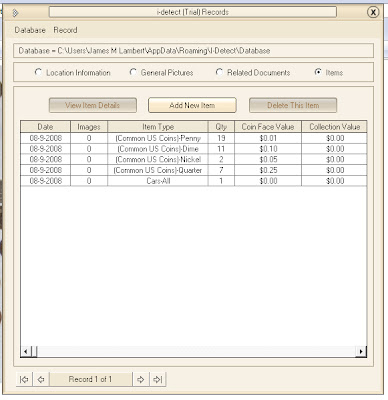
So after adding all of your items, your first record is complete. Simple as that. Awesome software isn't it? If you want to continue on with your next record, it's as simple as Record > Add new Record.
Besides the Records window, your detector face has a few functions as well. Not only do the options let you customize many of the settings of the software, from the look, to the actual information you can enter... but it has a great feature called Hardware. This let's you store all pertinent info regarding your machine. Who you bought it from when, warranty info etc. It's a great resource to bring that back up if something goes wrong.
Lastly, there is the "Search" function, which I think is golden. This search feature lets you search all of your record entries by one of dozens of criteria. Just think, nearly everything you entered into your record, is now a search option. It makes finding things and narrowing down finds quick and efficient.
Ginkgoware really outdid themselves, and are truly pioneers in metal detecting software. They really did think of everything, so it's hard to imagine what the next revelation in the product will produce.
If you are interested in the software, please visit
Ginkgoware and purchase an application that will keep you motivated and excited about getting out there and swinging that detector!


 Quotes update on refresh :)


